Manage custom roles, team members, account security, API keys, and your PermitCore subscription.
Admin Panel
Users & Roles
PermitCore supports multiple team members under one company account. Each user has a role that determines what they can do.
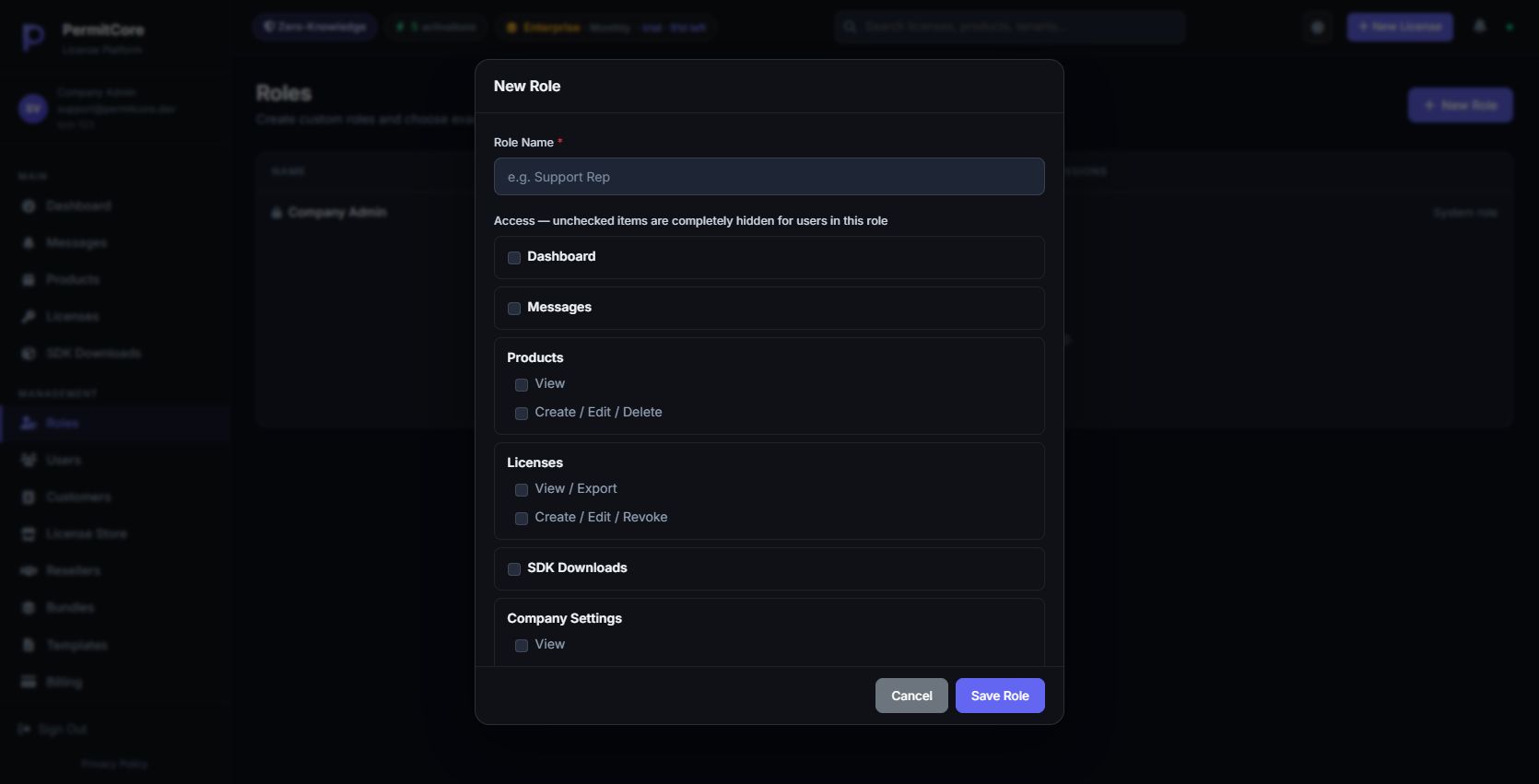
The New Role form starts with no permissions selected. Company Admin remains the fixed full-access role.
Roles explained
Role
What they can do
Company Admin
Full access: manage products, licenses, users, billing, webhooks, company settings. The account owner is always a Company Admin.
Company User
Access is defined by the custom role assigned to this user. A role can grant selected menus and tabs; it is not automatically read-only. Missing role permissions mean no access.
Create a custom role first
Open Roles → New Role and give it a descriptive name, such as Support.
Select the menus and tabs that role needs. A new role starts with no access.
Save the role and assign it when creating or editing a Company User.
Test with that user account. A menu can be unavailable because of role permissions or your billing plan.
Company Admin is the fixed full-access role and cannot be edited through the role editor. Custom-role restrictions are checked by the API as well as the interface.
Adding a team member
Go to Users → Add User and fill in:
First & Last Name — for display in the admin panel
Email — they will use this to log in
Password — set a temporary password (they can change it in Settings → Security)
Role — Company Admin for full access, or Company User with an assigned custom role
Invited users do not yet receive an automated welcome email — share their login credentials manually.
They can change their password after first login via Settings → Security.
Deactivating a user
You can deactivate a user (e.g. when an employee leaves) without deleting them.
Deactivated users cannot log in but their full audit history is preserved.
You cannot deactivate yourself — another admin must do it.
You cannot delete the last Company Admin.
Promote another user to Admin first, then delete/deactivate the original account.
Multi-Factor Authentication (MFA)
Each user can enable TOTP-based MFA independently. Supported apps: Google Authenticator, Authy,
1Password, Bitwarden, Microsoft Authenticator. Setup is under Settings → Security → Enable MFA.
Admin Panel
Settings
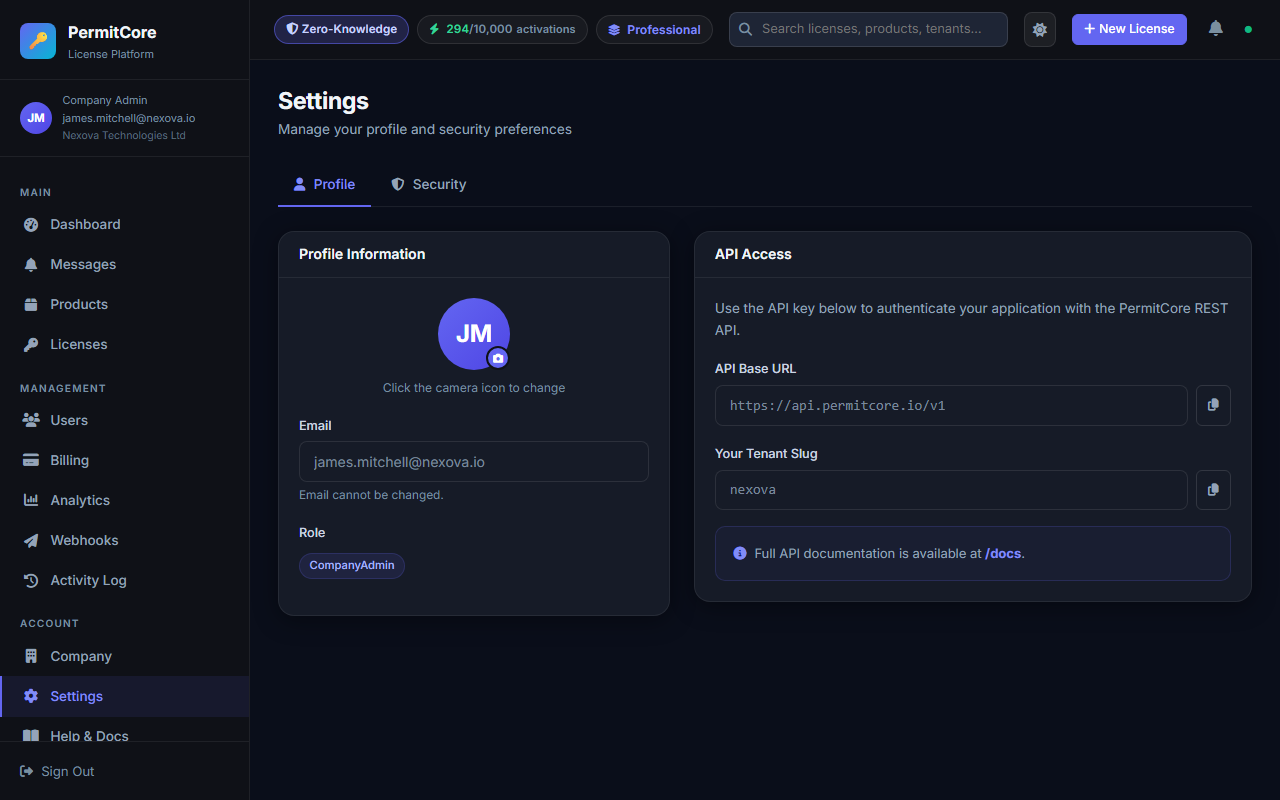
The Settings page — Profile tab showing account info, avatar upload, and API details.
Profile tab
View your email address, role, and company slug.
You can upload a profile avatar by clicking the camera icon on the avatar circle.
Supported formats: JPG, PNG. The avatar appears in the admin sidebar.
The API Base URL and Tenant Slug shown here are what you use
to construct API calls from your application.
Security tab
Changing your password
Enter your current password, then your new password. Your current password is required for every role, including SuperAdmin. A successful self-change keeps your current session; an incorrect current password changes nothing. For a new password, use 15-128 characters. Spaces and Unicode are allowed; no uppercase/lowercase/number mix is required. The server rejects common passwords and obvious account or service-name variants. Existing passwords keep working for sign-in; there is no forced rotation. Passwords are not silently trimmed, case-folded or normalized before credential hashing.
Password changes require an interactive sign-in, not an API key. If you signed up through an external identity provider and do not know a local password, use the password-reset email flow. An authorised SuperAdmin resetting a different user must provide the acting SuperAdmin's current password; that operation is audited separately and ends the target user's Admin and refresh sessions.
Multi-Factor Authentication (MFA)
PermitCore supports TOTP-based MFA (works with Google Authenticator, Authy, 1Password, Bitwarden, etc.).
To enable:
Go to Settings → Security and click Enable MFA
Scan the QR code with your authenticator app (or enter the secret key manually)
Enter the 6-digit code from your app to confirm setup
Save the one-time backup codes — each code is single-use for account recovery if you lose your device
If you lose access to your authenticator app and all backup codes, you will need to contact support to regain access. Store backup codes in a safe location (password manager, printed and stored securely).
API Keys tab
API Keys let your server-side applications authenticate with the PermitCore admin API
without a browser login. Use them for automated deployments, CI scripts, or backend integrations.
Go to Settings → API Keys and click New Key:
Name — a label for your own reference (e.g. "Production server", "CI deploy")
Expiry — optional date. Leave blank for keys that never expire.
After creation, the raw key is shown once — copy it immediately. It won't be shown again.
Treat API keys like passwords. Store them in environment variables or a secrets manager — never commit them to source control. Maximum 10 active keys per account. Rotate keys regularly and revoke any that may have been exposed.
You can Rotate a key (generate a new one with the same settings, invalidate the old one) or Revoke it instantly from the API Keys list.
Session timeout
The admin panel automatically signs you out after 30 minutes of inactivity, enforced by the server.
A countdown appears during the last five minutes. Click Continue session to renew before expiry.
Clicks, typing, scrolling, navigation and reload count as activity; mouse movement and background requests do not. Access JWTs renew separately with their existing 15-minute default.
Company Settings
Go to Company in the sidebar to update your company name and contact email.
The Company Slug (the URL identifier) is set at registration and cannot be changed.
Security Policy (Company Admins only)
Enable "Require MFA for all users" to force every team member to set up
two-factor authentication before they can access the dashboard. When this policy is on:
Users who already have MFA enabled log in normally
Users without MFA are redirected to the MFA setup screen immediately after entering their password
They cannot access any other page until setup is complete
Sign-in link privacy
Direct Admin login/reset/callback pages and the standalone Customer Portal use no-referrer. Other Admin, Store and public pages use an origin-only baseline (strict-origin): the browser sends only origin, without the path or query, even for same-origin requests. Public pages also use origin-only referrers, protecting SPA transitions without reloading; actual UTM URLs and current-page event values remain unchanged. Keep verification, reset and temporary download links private: this header does not remove the initial URL from browser history or every access log. Existing links and sign-in behavior remain compatible.
Website analytics preferences
Google website analytics is separate from your product's Admin analytics charts. Private Admin areas, known test tenants and nonproduction hosts are excluded. Team and QA browsers can open the internal-browser preference link once and reload existing tabs after saving work. This preference is shared across PermitCore subdomains using the Secure, identity-free __Secure-pc_internal cookie on HTTPS. The __Secure-pc_admin_active marker follows the Admin session deadline. Existing exclusions are retained during upgrades; reload saved tabs after updating. HTTP development uses localStorage without insecure fallback cookies. It does not change license processing, account access or billing counters. Analytics reporting failures do not fail otherwise successful license checks. See the Cookie Policy to manage it.
Eligible anonymous public pages use Consent Mode v2. Limited cookieless measurements can reach Google while analytics storage is denied, including after Reject all. Analytics cookies and custom signup/checkout events require Analytics consent; all advertising consent stays denied. Absolute internal/private/test exclusions send no Google measurements. You can reopen cookie preferences at any time.
Data & Privacy — GDPR Export
Click "Export My Data (ZIP)" under Company → Data & Privacy
to download the documented account-data subset. The ZIP contains:
File
Contents
tenant.json
Your company profile and billing info
users.json
All team members (no password hashes)
products.json
All products
licenses.json
All license keys (encrypted ciphertext, never plaintext)
activations.json
Full activation history with IP, country, city, user agent
audit_logs.json
Audit trail (last 90 days)
api_keys.json
API key metadata (no secrets — only prefix and expiry)
README.txt
Explanation of each file and data deletion contact
Review the export's coverage and exclusions when using it for an access or portability request. For data deletion requests, use Settings → Danger Zone → Request Data Erasure; the request is tracked for human review with a 30-day due date.
For a consistent recovery snapshot with available original Store values and stored image bytes, use the separate acknowledged Recovery package. Its sensitive ZIP is not encrypted. Keep the original passphrase and separate signing-key export, and test an isolated restore before relying on it.
Admin Panel
Billing & Plans
PermitCore offers four plans. The plans differ in the total active device capacity, API rate limit,
and which features are available. Lower tiers will see a lock icon and an upgrade prompt for features they don't have access to.
When changing plans, review the selected price and billing interval, then check the
required Terms of Service acknowledgement. Continue is muted and
unavailable until it is checked. Analytics cookie choices remain separate.
After registration checkout, Payment Successful means a confirmed paid
checkout. An eligible trial shows Subscription Activated. If confirmation
is still pending, sign in to check your subscription before attempting another purchase.
Current prices, activation limits and eligible paid trials are shown on Pricing
and Billing. Public HTML contains billing data captured at build time; the browser refreshes it
from the pricing service. If that service is unavailable, the page shows an availability message
instead of substituting prices or trials. Checkout confirms the final price and eligibility.
The summaries below describe standard plan features.
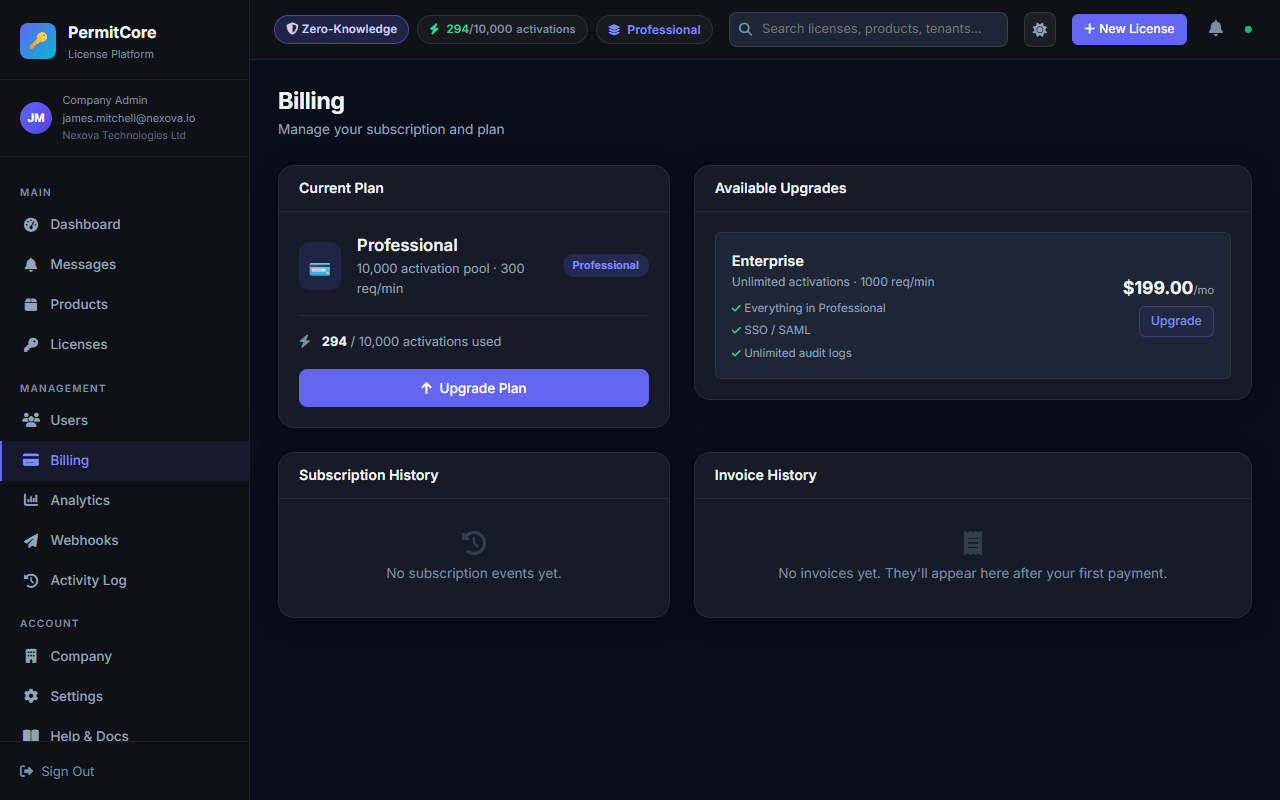
The Billing page showing current plan, activation usage, subscription history, and invoices.
Uptime and response-time figures above are targets, not contractually guaranteed service credits, except where formalized in a signed Enterprise agreement.
Subscription history & invoices
The Billing page shows your full subscription history (upgrades, downgrades, cancellations)
and a downloadable invoice history. Each invoice has a PDF download link for accounting purposes.
Upgrading your plan
Go to Billing, find the plan you want, and click it to start the Stripe checkout.
Your plan upgrades instantly after successful payment. The new device capacity takes effect immediately; occupied seats are preserved.
Platform Stripe billing uses Stripe-hosted card processing. Vendor Store payments use the vendor's selected Stripe, Paddle or Lemon Squeezy connection. PermitCore does not store card details.
Platform billing and vendor Store payments
Admin → Payment Providers manages platform Stripe credentials and Paddle sandbox preparation. Stripe remains the default for platform plans. Saving a Paddle connection does not enable live payments or migrate existing Stripe contracts. Each vendor chooses Stripe, Paddle or Lemon Squeezy separately in License Store → Settings.
SuperAdmin: prepare platform Paddle in sandbox
SuperAdmin: PermitCore plan billing. This connects the platform's Paddle sandbox account for testing tenants' PermitCore plans. A vendor selling their own products uses License Store → Settings and the separate Store guide.
Stripe remains the default for platform plans. Saving a Paddle account or marking it Default does not switch the platform provider, migrate Stripe subscriptions or enable live Paddle payments. Live platform Paddle is held until seller verification, business readiness and release approval.
1. Save an inactive sandbox connection
Open Admin → Payment Providers → New Provider. Choose Paddle, give it a clear internal name and keep Sandbox / Test Mode selected.
In the Paddle Billing sandbox dashboard, find your numeric Seller ID in account settings.
Under Developer tools → Authentication, create a sandbox API key with the account, catalog, customer, transaction, subscription, adjustment and customer-portal permissions needed for this integration. Copy its pdl_sdbx_ value into API key.
Create a client-side token in the same sandbox workspace. Its value starts with test_. Enter it in Client-side token; this public token opens Paddle.js and is different from the secret API key.
Leave Active off and save. Open the saved connection to obtain its exact sandbox webhook URL. Do not reuse a Store webhook destination.
2. Connect signed payment notifications
In Paddle sandbox Developer tools → Notifications, add the displayed URL as a destination. Subscribe to transaction.completed, transaction.payment_failed, transaction.past_due, subscription.created, subscription.trialing, subscription.activated, subscription.updated, subscription.past_due, subscription.canceled, subscription.paused, subscription.resumed, adjustment.created and adjustment.updated.
Copy that destination's signing secret into Webhook signing secret. Enable Active and save. API keys and signing secrets are stored encrypted; a blank secret input on a later edit keeps the saved value. The public client token and numeric Seller ID are not secrets.
3. Verify the account and prepare prices
Click Verify sandbox account and sync plan catalog. PermitCore checks the Seller ID against Paddle's account API and creates or reuses platform-only SaaS products and EUR prices. Existing price mappings are retained for historical subscriptions. A successful sync does not prove a completed payment.
The checkout page is /billing/paddle-checkout on the configured Public host. Its domain must be approved in Paddle sandbox Website approval. Checkout creation supplies this URL per transaction; it does not change the seller account's global default payment link.
4. Test before changing the platform default
An operator selects the connection ID with PlatformBilling:PaddleProviderId and uses PlatformBilling:Provider=paddle only in the isolated test/staging configuration. Existing Stripe contracts keep Stripe. Keep PlatformBilling:PaddleLiveEnabled=false. Do not change live seller settings.
Use an owned test account and Paddle sandbox cards. Verify the plan, paid amount/currency/tax and provider document; test eligible three-calendar-month trials, cancellation/resumption, upgrades, refunds and real failed/recovered renewal. A browser success URL or simulated webhook does not prove settlement. Sandbox is clearly labeled and moves no real money.
Manage Subscription opens a fresh, temporary Paddle customer-portal link. Open it from Billing whenever needed instead of bookmarking the signed link.
If setup does not work
Cannot activate: check all four sandbox values: Seller ID, API key, client-side token and webhook signing secret. Never paste the secret API key into the public token field.
Sync failed: check that the API key belongs to the same Seller ID and has the required permissions. Keep Stripe as the default while investigating.
Checkout will not open: check Website approval for the actual Public domain and retry from Billing. Do not create duplicate provider subscriptions manually.
Payment pending: wait for canonical payment confirmation and check notification delivery. Zero-total card changes and credit-only updates do not count as paid renewals.
Deleting or changing the seller is refused: a used connection is retained for its historical checkout/catalog bindings. Create a separate connection for another seller.
The Copy button on the platform screen copies its displayed Stripe webhook URL. If the browser blocks clipboard access, the page reports the problem and you can copy the displayed URL manually. A vendor must use the webhook URL shown in their own Store settings.
Test API keys and sandbox licenses
These are different objects. An API key authenticates a management integration. A license key is the credential your customer uses to validate or activate software.
Object
How to identify it
What to use it for
Admin API key
permit_live_… or permit_test_…
Trusted server-to-server administration. The test prefix is not an isolated tenant or a read-only security boundary.
Sandbox license
PERMIT-… with isTest: true
Exercise license behavior; occupied test seats also count against account capacity.
Create a sandbox license in Licenses → Create License → Test / Sandbox. Do not attach an admin API key to public validation or activation requests to “make them test requests.” See sandbox licensing.
Create management credentials under Settings → API Keys. Copy the raw value when shown, keep it in a secret manager, and revoke it when no longer needed. Both prefixes authenticate a privileged tenant integration; neither belongs in distributed application code.
Failed PermitCore subscription payments
These reminders concern your company's subscription to PermitCore. When its payment fails, company admins receive an initial email, followed by reminders scheduled for day 3 and day 7 while the payment remains unresolved.
Open Billing from your admin account.
Review the failed invoice and update your payment method through the billing portal.
Confirm the payment and subscription status. A successful payment resolves the reminder sequence.
Reminder delivery depends on the instance's mail configuration and payment webhooks. On the hosted service these are operated by PermitCore; self-hosted operators must configure and monitor them. Scheduled follow-ups may arrive after their nominal time because they are processed by a background worker.
For payments made by buyers in your own store, configure the vendor Stripe integration described in License Store.
Export account data
A company admin with a verified email can download an account-data ZIP from Company Settings. This is available on every plan. The export is a selected set of account records, not a complete database backup or a collection of plaintext license keys.
What the ZIP contains
File
Contents
tenant.json
Company profile, activity status, billing tier, timestamps and the encryption salt needed with your own passphrase.
users.json
Team identity, role, email-verification and MFA status; no password hashes.
products.json
Product names, versions, descriptions and activity status.
licenses.json
Encrypted key values and IVs, lookup hashes, IDs, product references, activation counts, expiry, license controls, payment boundaries, notes and tags. No plaintext keys or passphrase.
activations.json
Activation references, timestamps, IP addresses, location, user agent, device identity, software version, user email and reactivation flag.
audit_logs.json
Audit events from the last 90 days.
api_keys.json
Names, prefixes, activity and expiry metadata; no raw API keys or hashes.
customers.json
Customer profiles, addresses and verification status; no passwords or sign-in tokens.
store_*.json, orders.json
Catalog, prices/history, design, slides/image references, orders, Stripe subscriptions and tax invoices. Includes original provider/payment IDs, money, tax, refund and commission values; no order plaintext license values.
provider_*.json
Provider connection metadata, product mappings, subscription/payment receipts and event status. No API/signing credentials or raw provider inbox bodies.
Tenant-owned roles, permissions and reseller/commission configuration.
webhook_endpoints.json, *_metadata.json
Webhook configuration and delivery status, floating sessions, SSO, offline activation and self-host records. Session tokens, webhook secrets, payloads/errors and SSO secrets are excluded.
signing_public_keys.json
Historical public verification keys, key IDs and status. No private signing keys.
Own platform checkout snapshots and event-processing metadata, including original provider references. No global provider credentials, catalog or raw inbox bodies.
manifest.json
Versioned export format and explicit coverage/exclusions. It identifies this ZIP as a selected account-data export rather than a database backup.
README.txt
Export date and a description of the archive.
Download and use the export
A Store-issued license's EncryptedKey can be a store-order: reference, not passphrase-decryptable ciphertext. The ZIP excludes order delivery material and server encryption secrets, so it cannot recover these Store key values on its own. Preserve delivered keys and arrange authorized recovery while retained material and the service remain available.
Sign in as a company admin with a verified email and open Company Settings.
Choose Export My Data (ZIP) and save the archive in a protected location.
Inspect the included files before using the archive for an access request or migration. Retain your license-key passphrase separately: ciphertext, IVs and salt cannot recover it on their own. The archive contains personal data and does not include every application feature's records.
Format version 3 lists every archive file in manifest.json, including platform Paddle history. Uploaded file bytes are not included: image/download URLs are references, while inline avatars remain in team records. Keep original assets and provider records separately. Raw event/delivery payloads, authentication and provider secrets, private signing keys and platform-global configuration are excluded. Reads are sequential, not a transactionally consistent database snapshot. Signing private keys require the separate acknowledged export in Settings → Security → Business Continuity. Follow the exit plan and test recovery before an outage. Exported lookup hashes are identifiers, not license values or a replacement for the server's global secrets.
The API equivalent is GET /api/gdpr/export with the signed-in admin's bearer token. API keys are not accepted by this endpoint. The export action is recorded in the audit log.
Account recovery package
The separate Export Recovery Package (ZIP) action in Company Settings is available to a company admin with a verified email on every plan. It captures the account records together in a PostgreSQL repeatable-read transaction, adds available original Store license values, and packages the stored bytes of inline images. The ordinary account-data ZIP above keeps its existing scope.
Prepare and download
The current recovery helper accepts exact versions 2, 3 and 4 account-data inventories. Restored platform checkouts are closed, inbox events are archived without replay, and operational billing connections are cleared. Version 4 also preserves recorded last-sign-in and device last-seen timestamps; legacy versions leave missing observations unknown. Recovery never starts a new introductory trial or changes an external provider subscription; review billing separately before reopening.
First export the active signing key from Settings → Security → Business Continuity and keep your original license-key encryption passphrase separately.
Open Company Settings → Data & Privacy → Recovery package. Read and select the confidentiality acknowledgement, then choose Export Recovery Package (ZIP).
Store the ZIP, signing-key file and passphrase in protected backup storage. The ZIP itself is not encrypted. Anyone with it can read the included customer data and available Store license values.
Read manifest.json and recovery/README.txt. A warning identifies historical Store values that were never retained or whose stored delivery material is invalid. Export does not invent or replace a customer key.
Arrange a trial recovery with your operator in a new isolated installation before depending on the package.
Files and limits
Location
What it provides
data/
The 44 allowlisted record datasets plus manifest.json and README.txt (46 files), captured inside the recovery transaction.
recovery/store-keys.json
Available original Store key values with their license/order IDs, or an explicit missing/invalid-delivery status.
assets/, recovery/assets.json
Hashed binary copies of stored inline images. Uploaded avatars are the stored resized version, not the original pre-resize file.
recovery/external-assets.json
External image/download references. These URLs are not fetched or represented as backed-up files.
Key-prefix and active-device-capacity details plus all available audit metadata; raw audit detail bodies remain excluded.
manifest.json
Format version, entry sizes, SHA-256 checksums, key coverage and recovery requirements. Checksums detect corruption; they are not an independent authenticity signature.
The package excludes platform master encryption/HMAC keys, passwords, MFA and sessions, provider/webhook credentials, raw event bodies and private signing keys. Keep the separately exported active signing key. Recovery is limited to currently retained records and original values that still exist. The maximum uncompressed package is 128 MiB; an over-limit snapshot fails rather than silently truncating records.
Restore in an isolated destination
Your operator initializes the same compatible PermitCore release in an empty PostgreSQL database named permitcore_recovery_*, with a separate Valkey and the target's own encryption/HMAC configuration. The API image includes the operator helper at /app/recovery/PermitCore.Recovery.dll. Backend self-hosting entitlement is separate from exporting your data.
The helper uses PERMITCORE_RECOVERY_CONNECTION, PERMITCORE_RECOVERY_VALKEY, PERMITCORE_RECOVERY_FIELD_KEY and PERMITCORE_RECOVERY_HMAC_SECRET from the target's protected configuration. Secret values belong in protected files/environment, not command-line arguments or logs. It refuses an existing tenant or a normal application database.
Original Store values are encrypted again with the target's field key and rehashed with its HMAC key. Browser-created values require the original passphrase for authenticated decryption and rehashing. Active signing trust requires the matching separate signing-key file. A wrong passphrase, mismatched signing key, invalid relationship or checksum aborts the transaction.
Missing values make a default restore fail. An operator can explicitly use --allow-unavailable-values for an incomplete restore; those licenses stay disabled and the command returns exit code 3. This is not a complete recovery of those key values.
Review before reopening
Sign in using the target installation's fresh operator account. Restored team members need new authentication setup; old passwords, MFA and sessions are not copied.
Review the restore report. The Store, payment connections/mappings, SSO and outbound webhooks require reconfiguration. Old billing reminder and event replay schedules are stopped; floating clients must check out new leases.
Reconcile platform billing and activation add-ons. Recovery does not change or cancel subscriptions held by an external payment provider.
A historical order may refer to a reseller outside the exported account. That nullable user link is disconnected on restore; its original ID remains in the ZIP and restore report. Commission amounts remain unchanged and require reconciliation. Recovery does not copy another account's user.
Test original license values, trusted proof, product/customer/order relationships, monetary values and images before opening checkout. Keep external asset files with their own host's backup.
Stored image bytes remain in restored account records. An operator can also use extract-assets --archive /private/recovery.zip --destination /private/new-assets to save binary files into a new private directory without overwriting existing files.
We use necessary cookies for sign-in and checkout security. Eligible public pages send limited cookieless measurements to Google. With your consent, we also use analytics cookies and signup/checkout events. Internal and private areas are excluded. See our Cookie Policy.Necessary cookies support sign-in. Analytics is optional. See Manage preferences for details.